> For the complete documentation index, see [llms.txt](https://docs.appfarm.io/llms.txt). Markdown versions of documentation pages are available by appending `.md` to page URLs; this page is available as [Markdown](https://docs.appfarm.io/how-to/integrations/embed-powerbi-in-appfarm.md).
# Embed PowerBI in Appfarm
This guide outlines the necessary configurations in Entra, Power BI, and Appfarm to successfully embed Power BI reports in an Appfarm app.
## Part 1: Entra and Power BI Configurations
Most of these steps are already configured, but it's crucial to understand their requirements.
### 1. App Registration in Entra
* An application needs to be registered in Entra.
* Required API Permissions (Minimum):
* Dataset.Read.All: Delegated permission to "View all datasets".
* Report.Read.All: Delegated permission to "Make API calls that require read permissions on all reports".
* Generate Embed Token - REST API: This process is used to generate the embed token.
### 2. Security Group in Entra
* A security group in Entra must be created for use in the Power BI Admin center.
* The Entra App created above needs to be added to this security group.
### 3. Power BI Admin Center Settings
* Ensure the security group is added to the necessary developer and admin settings within the Power BI Admin center.
* Developer Settings: Select "Service principals can use Power BI APIs".
* Admin API Settings: Select "Service principals can access read-only admin API".
## Part 2: Appfarm Configuration
These Appfarm configurations are necessary.
### 1. Secrets in Appfarm Create
* Two secrets need to be created:
* `Entra PBI App ID`
* `Entra PBI App Secret`
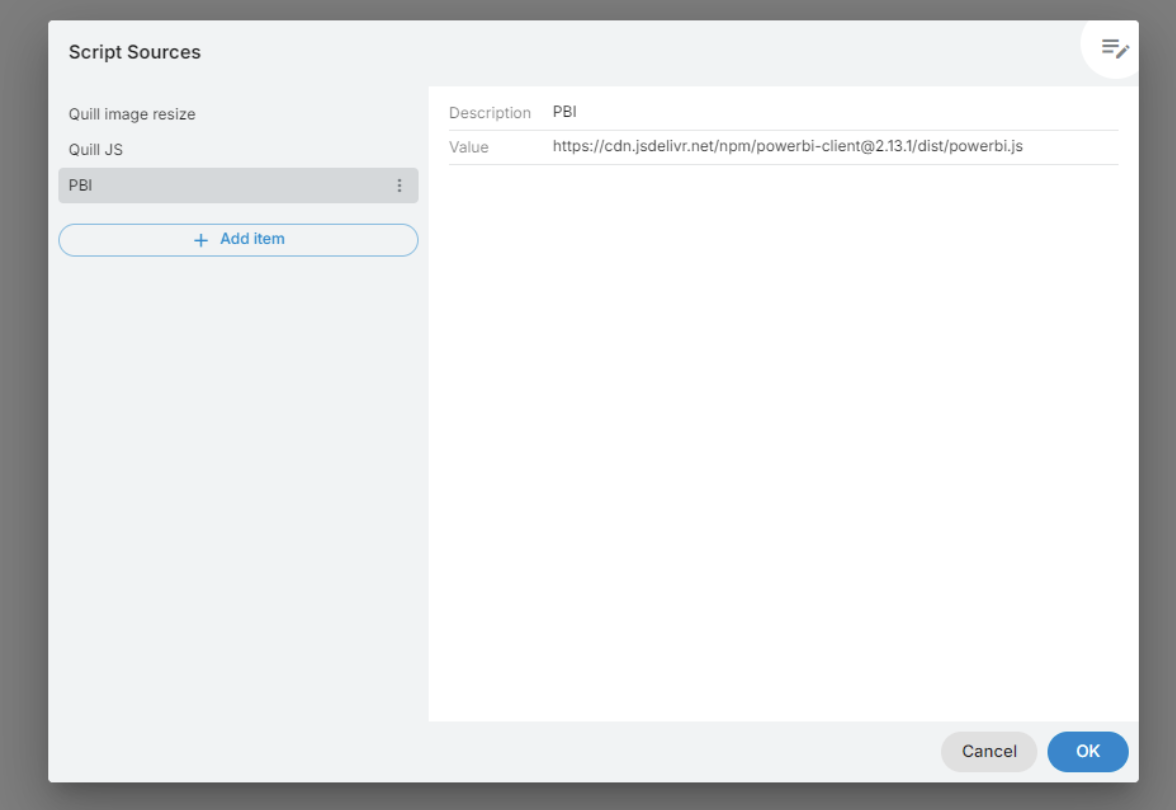
### 2. Whitelist PBI Script Source
* In the Environment Config (for each environment), add the Power BI Script source to the environment whitelist (Content Security -> Script Sources).
* The URL for the script is:
`https://cdn.jsdelivr.net/npm/powerbi-client@2.18.5/dist/powerbi.min.js`
## Part 3: Power BI Report Setup and Configuration
### 1. Workspace Access
* The Entra App (*not* the Security Group) must have access to the workspace where the Power BI report is located.
* The app's role in the workspace must be either "Member" or "Admin".
### 2. Identify IDs and Roles
* Note down the IDs for the Dataset, Report, and Workspace (also known as Group ID).
* If Row-Level Security (RLS) is used, note the names of the roles in the report.
## Part 4: Appfarm App Configuration
### 1. Create App Variables
* Create two [App Variables](/reference/apps/data/app-variables.md#custom-app-variables) in your Appfarm application:
* One to store the Access Token.
* One to store the Embed Token.
### 2. On-App Load Action with web request to generate access token
* Create an "On - App Load" action.
* Add a Web Request action node to generate the Access Token.
* Base URL: `https://login.microsoftonline.com//oauth2/v2.0/token` (You can copy the endpoint from the Entra App for accuracy)
* Method: `POST`.
* Auth: `No auth`.
* Body Type: `URL-encoded`.
* Body Content:
Add 4 Form Data entries the following Keys and Values
```
grant_type=client_credentials
client_id=${entraPBIAppID} // Use the secret variable for App ID
client_secret=${entraPBIAppSecret} // Use the secret variable for App Secret
scope=https://analysis.windows.net/powerbi/api/.default
```
* Result mapping: Select App Variables data source, and type in path `access_token` on the property mapping for the access token app variable.\

### 3. Web request to generate Embed Token
* Add another Web request action node to generate the Embed Token.
* Base URL: `https://api.powerbi.com/v1.0/myorg/GenerateToken`.
* Authorization: `Bearer`
* Auth Token: `App Variables.Access Token`
* Prefix Bearer Keyword: :white\_check\_mark:
* Method: `POST`.
* Body Type: `Raw`.
* Body Content (JavaScript):
Define the following function (add currentUserEmail as function parameter)
```javascript
return {
datasets: [
{
"id": "",
"xmlaPermissions": "ReadOnly"
}
],
reports: [
{
"id": ""
}
],
identities: [
{
username: currentUserEmail,
roles: [""], // If using RLS
datasets: [""]
}
]
};
```
* Result mapping: The following response is received. Select App Variables as Data Source, and type in "token" for the property mapping og the Embed Token app variable.
```json
{
"token": "H4sIAAAAAAAEAMtIzcnJVyjPL8pJUeJUeJRxAgCCzQNLFAAAAA==",
"tokenId": "46f04cfb-5c66-4e12-8d4e-0bc3498b9733",
"expiration": "2025-07-09T12:36:00.123Z"
}
```
## Part 5: Embed Visual in Appfarm App using Coded Component
### 1. Configure Coded Component
* Add a Coded Component (UI Component) to your View
* In the Coded Component, go to the right-hand pane.
### 2. Add Resource Property (Resources -> click `+`)
* Name: `PBI` (or any other descriptive name).
* Type: `Script URL`.
* Script URL: `https://cdn.jsdelivr.net/npm/powerbi-client@2.18.5/dist/powerbi.min.js`.
### 3. Add Data Property (Data -> click `+`)
* Name: `embedToken` (If you use a different name, update the JavaScript accordingly).
* Value Type: `Value`.
* Value: Set this to the Appfarm variable that holds your embed token value (`App Variables.Embed Token`).
### 4. Copy and Paste HTML Code
* Add the following HTML code to the **HTML Content** section of your coded component. You can adjust the `style` settings as needed:
```html
```
### 5. Copy and Paste JavaScript Code
* Add the following JavaScript code to the **Script** section of your coded component.
Remember to update the values of the variables `embedUrl` and `embedReportId`:
```javascript
//Script:
let loadedResolve, reportLoaded = new Promise((res, rej) => { loadedResolve = res; });
let renderedResolve, reportRendered = new Promise((res, rej) => { renderedResolve = res; });
let models = window['powerbi-client'].models;
function embedPowerBIReport() {
let accessToken = appfarm.data.embedToken.get(); //CHANGE THIS IF YOU RENAME THE EMBED TOKEN DATA INPUT
let embedUrl = "https://app.powerbi.com/reportEmbed?reportId=&groupId="; //CHANGE EMBED URL
let embedReportId = ""; //CHANGE REPORT ID
let permissions = models.Permissions.Read; //CHANGE PERMISSIONS IF USER NEED OTHER RIGHTS. THESE INCLUDES READ, READWRITE, COPY, CREATE, ALL.
let tokenType = models.TokenType.Embed;
let config = {
type: 'report',
tokenType: tokenType == '0' ? models.TokenType.Aad : models.TokenType.Embed,
accessToken: accessToken,
embedUrl: embedUrl,
id: embedReportId,
permissions: permissions,
settings: {
panes: {
filters: {
visible: true
},
pageNavigation: {
visible: true
}
},
bars: {
statusBar: {
visible: true
}
}
}
};
let embedContainer = document.getElementById('embedContainer');
let report = powerbi.embed(embedContainer, config);
report.off("loaded");
report.on("loaded", function () {
loadedResolve();
report.off("loaded");
});
report.off("error");
report.on("error", function (event) {
console.log(event.detail);
});
report.off("rendered");
report.on("rendered", function () {
renderedResolve();
report.off("rendered");
});
}
embedPowerBIReport();
```
---
# Agent Instructions
This documentation is published with GitBook. GitBook is the documentation platform designed so that both humans and AI agents can read, navigate, and reason over technical content effectively. Learn more at gitbook.com.
## Querying This Documentation
If you need additional information that is not directly available in this page, you can query the documentation by asking a question.
Perform an HTTP GET request on the following URL with the `ask` and `goal` query parameters:
```
GET https://docs.appfarm.io/how-to/integrations/embed-powerbi-in-appfarm.md?ask=&goal=
```
`ask` is the immediate question: it should be specific, self-contained, and written in natural language.
`goal` is what the user is ultimately trying to achieve, the reason they need the answer. Sharing it helps GitBook give you a better, more relevant answer. A goal is most helpful when it describes the outcome the user wants rather than restating the question. For example, with `ask=how do I create an API token`, a goal like `automate deployments from our CI pipeline` lets GitBook tailor the answer to that use case.
The response will contain a direct answer to the question and relevant excerpts and sources from the documentation.
Use this mechanism when the answer is not explicitly present in the current page, you need clarification or additional context, or you want to retrieve related documentation sections.