> For the complete documentation index, see [llms.txt](https://docs.appfarm.io/llms.txt). Markdown versions of documentation pages are available by appending `.md` to page URLs; this page is available as [Markdown](https://docs.appfarm.io/reference/appfarm-ai/build.md).
# Build
Build enables conversational development inside Appfarm Create. Describe the desired app or functionality and follow along as the agent goes through the implementation tasks.
Build mode has a few limitations (see [#current-limitations](#current-limitations "mention")), but in general, it supports building full-stack [apps](/reference/apps.md) and [flows](/reference/flows.md).
{% hint style="info" %}
If you are familiar with how building with Appfarm AI works, and want a practical guideline, please see the [Practical Guide to Appfarm AI](/reference/appfarm-ai/practical-guide-to-appfarm-ai.md) section.
{% endhint %}
## Getting started
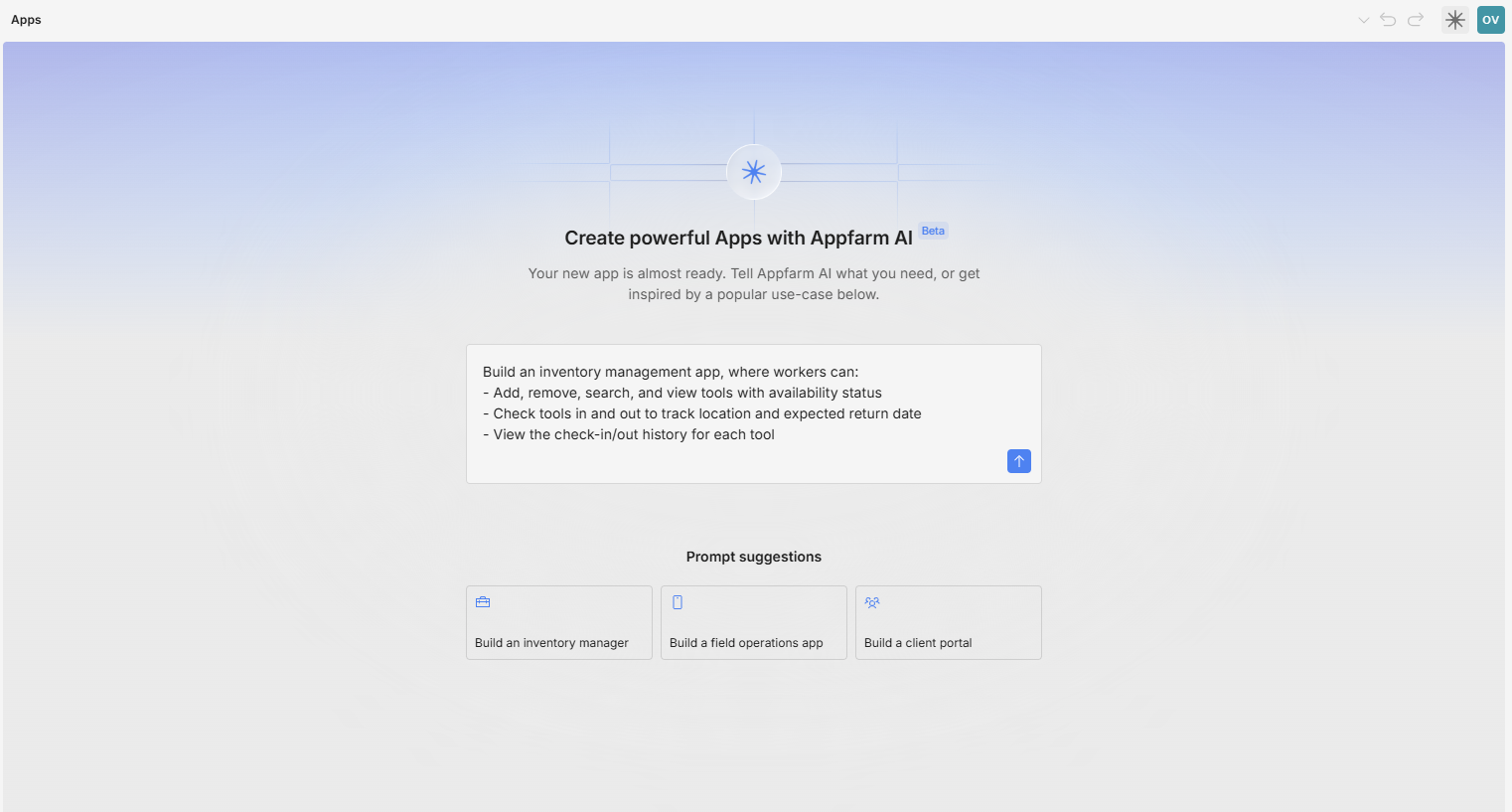
When your Solution has no apps, the [Apps](/reference/apps.md) page will prompt you to describe an app for Appfarm AI to build with its agents.
Screenshot of the Apps page in Appfarm Create with a prompt to build a new app.
Once a prompt has been submitted, the orchestrator agent will ask questions, and once the scope is clear, create a plan for building the app. A plan is built by breaking the request down into implementation *tasks*. You can refine the plan by asking the agent to add, revise, or remove tasks.
Once you're satisfied with the plan, click **Build App**. The Appfarm AI sidebar will open with your initial prompt and the list of implementation tasks, and the builder agents will automatically start working on the first task.
## Working with the builder
### Multi-agent architecture
The App Builder consists of multiple agents. The orchestrator is the main agent, with full knowledge of Appfarm Create and all subagents. It plans and delegates, asks questions, and ships tasks to subagents. It also validates the implementation of the subagents.
The subagents are the specialists and the builders. They can work in parallel, and the orchestrator tries to achieve parallelism if possible. Each subagent has differentiated instructions, tools, and metadata, allowing for lower token/credit usage.
If you want to work directly with one of the subagents, e.g. if you are only doing UI work, you can select them directly through the [Agent Focus](#agent-focus) mode.
### **Tasks and changes**
When building an app or making big changes to existing apps, subagents work on **Tasks**.
To stop the build process, click the Stop icon in the bottom-right of the AI Panel. A **Continue** button will appear. In the AI panel, each task has its own tile with timers. Each tile represents a subthread. Click the tile/task to see details of the subagent work.
The **Change history** panel lists all components created or touched by the agents. Click any item in the list to jump to its location in Appfarm Create. You may also **adjust anything visually** (e.g. change the order of input fields in a Dialog, or add an action node to an Action) while the agents are running (or after).
You can also view and **Undo** all changes done by the agents in the top-right Undo/Redo menu. You can only Undo when the agents are *not* running:
### **Error handling**
Like any AI tool, the agents can make mistakes. These mistakes may result in bugs in your app, such as faulty logic in an action or suboptimal UI. You can resolve these issues by prompting the agent—see the [#prompting-guide](#prompting-guide "mention") section for effective techniques—or by fixing them manually.
The agents may also make changes to your models that aren't technically valid in Appfarm Create. When the agent completes an operation, all changes pass through a validation layer. If any errors are detected, these are automatically sent back to the agents, which will then attempt to fix them. If the agents can't resolve the errors after several attempts, it will pause and ask whether you'd like it to continue.
Please help us avoid errors and improve the agent by providing [feedback](/reference/appfarm-ai.md#feedback) when you encounter issues and click the :thumbs-up: or :thumbs-down: button after the response provided by the agent.
{% hint style="success" %}
Suppose Appfarm AI builds an app or functionality that does not seem to work during testing: try explaining to Appfarm AI *what* does not work in clear terms. If there are error messages in the [developer tools](/reference/appfarm-client/developer-tools-for-apps.md), also copy this error message and add it to your prompt. In many cases, the AI will be able to fix the error or incorrect logic. *Example: If a Save button does not work, mark it inside Appfarm Create and type "Nothing happens when I click this Save button".*
{% endhint %}
### **Threads**
A thread is a conversation with the agent that may include a list of tasks. When you send a message to the agents, the entire thread is sent as context along with the status of all associated tasks. By default, Appfarm Create starts a new thread on a fresh reload of Appfarm Create.
* **Start new thread:** Click the :plus: icon in the top right corner of the Appfarm AI sidebar.
* **Show thread history:** Click the thread name in the top left corner of the Appfarm AI sidebar to view your ten most recent threads in the current Solution. Select any thread to continue the conversation and complete unfinished tasks.
* **Resume a previous thread:** Open the thread history and select the thread you wish to continue.
**When a thread gets too long, Appfarm AI will summarise it behind the scenes.** If tasks exist, those will remain in their full form.
{% hint style="success" %}
Even if Appfarm AI summarises long threads, it is recommended to start a new, clean thread once in a while. If the AI gets stuck, try to create a new thread or refresh Appfarm Create.
{% endhint %}
### Agent Focus
Build mode is using all build-agents. This is self-orchestrated, meaning the top-level agent (the orchestrator) will delegate tasks to subagents with different capabilities.
When using build mode, you can actively choose one of the available subagents. We call this **Agent Focus**. You may select, e.g., the Frontend agent directly, meaning you will talk directly to a specialized subagent for design and UI work.
The subagents/agent focus are:
* **Frontend**: All UI work, including connecting data to UI and connecting actions to UI. It can not add app data or build actions or data model, but it can build or extend themes.
* **Logic & Data**: Can build actions and add app data to the app
* **Data Model**: Build or extend object classes or enums.
* **Flows**: All work related to building Flows.
## Custom agent knowledge
The agent is instructed to follow a defined "best practices" for building Appfarm apps. For example:
* Apps should use Dialogs for input (New/Edit records), Drawers for details pane (read-only details), both using the same runtime-only single cardinality data source.
* Datasources: Use database-connected for listing (plural tense naming) and single-cardinality runtime-only for Dialogs/Drawers (create/edit/display details, with `" (temp)"` as naming postfix).
* Actions naming: Use the main entity as a prefix (e.g., prefix `"Projects - "` for all project-related actions).
You may override these instructions or add other preferences (naming, UI/layout, colours etc) with your own custom **Agent knowledge**. Agent knowledge is located in the Settings in Appfarm Create (found in the top-left menu, or Thread/AI Panel menu). *The Agent knowledge is defined on the solution level*, meaning it is shared across the developers in the same solution. All subagents have access to this Agent knowledge.
## How the agent works
When you give Appfarm AI a task or prompt, your application metadata (the views, actions etc) is sent as [context](/reference/appfarm-ai/context-handling.md) .
By default (i.e. no Agent Focus has been selected), you talk to the orchestrator agent. It can not build, but it is great at conversing, analyzing, and delegating tasks to the subagents. Based on the orchestrator system instructions, the custom [agent knowledge](#custom-agent-knowledge), and the current location/selected component in Appfarm Create - the orchestrator determines the intent and asks questions or delegates clear tasks to the subagents.
A subagent is activated when it receives a task from the orchestrator, or when Agent Focus is selected by the user. Each has its own system instruction and tools set. Based on its system instructions, the custom [agent knowledge](#custom-agent-knowledge), and the current location/selected component in Appfarm Create - the subagent determines the intent, identifies the available tools, and determines which ones to use. Through these tools, the agent learns how the building blocks work in Appfarm Create. It then issues commands to insert, update, or delete parts of the application model. These commands function identically to actions performed by a human user, so the same guardrails and rules apply.
**Appfarm AI has access to web search.** In other words, you may refer to URLs. For example: 1) You may ask Appfarm AI to use colours and fonts from your homepage, or 2) you may provide a link to the documentation of an integration, in order to help Appfarm AI do better.
Read more about our [approach to AI](https://www.appfarm.io/ai/our-approach).
## Function Editor AI
Appfarm AI side-panel lives side-by-side with you while developing in Appfarm Create. It serves both as an app builder ("agentic app building"), an assistant ("your personal Appfarm expert"), and tutor ("Ask" mode is great for learning).
However, you can also use AI inside the Function Editor. Inside the Function Editor, the AI lives standalone (independent of your current thread and dialogue). It may add app variables and data sources, and it is exceptionally good at writing code and adding function params that serve the purpose.
## Current limitations
The agent is currently able to work with the following concepts in Appfarm Create:
* [Apps](/reference/apps.md)
* [App data sources](/reference/apps/data/data-sources.md)
* [App actions](/reference/actions.md)
* [UI](/reference/apps/ui.md)
* [Functions](/reference/platform-concepts/functions.md)
* [Conditions](/reference/platform-concepts/conditions.md)
* [Themes](/reference/resources/themes.md)
* [Object classes](/reference/data-model/object-classes.md)
* [Enumerated types](/reference/data-model/enumerated-types.md)
* [Flows](/reference/flows.md)
Appfarm AI has **not** yet been instructed to build
* Advanced charts / Gantt
* Translations
* Offline support
* Performance analysis/improvements
* [Services](/reference/services.md)
* Permissions and environment/login config
* Complex deletions for large solutions (requiring a chain of deletions in correct order)
Services are read-only for Appfarm AI, but it can read a Service and build a Flow that does the same. It can't create, edit, move, or delete a Service or anything inside one. It also can't change what a service depends on, such as the object class properties, enum values, secrets, and action params the service uses. If a service uses an optional built-in property of an object class, the whole object class is read-only. Appfarm AI can still add new properties to an object class that a service uses. Make other changes manually in Appfarm Create.
Appfarm AI will gradually expand its support to more areas.
---
# Agent Instructions
This documentation is published with GitBook. GitBook is the documentation platform designed so that both humans and AI agents can read, navigate, and reason over technical content effectively. Learn more at gitbook.com.
## Querying This Documentation
If you need additional information that is not directly available in this page, you can query the documentation by asking a question.
Perform an HTTP GET request on the following URL with the `ask` and `goal` query parameters:
```
GET https://docs.appfarm.io/reference/appfarm-ai/build.md?ask=&goal=
```
`ask` is the immediate question: it should be specific, self-contained, and written in natural language.
`goal` is what the user is ultimately trying to achieve, the reason they need the answer. Sharing it helps GitBook give you a better, more relevant answer. A goal is most helpful when it describes the outcome the user wants rather than restating the question. For example, with `ask=how do I create an API token`, a goal like `automate deployments from our CI pipeline` lets GitBook tailor the answer to that use case.
The response will contain a direct answer to the question and relevant excerpts and sources from the documentation.
Use this mechanism when the answer is not explicitly present in the current page, you need clarification or additional context, or you want to retrieve related documentation sections.