> For the complete documentation index, see [llms.txt](https://docs.appfarm.io/llms.txt). Markdown versions of documentation pages are available by appending `.md` to page URLs; this page is available as [Markdown](https://docs.appfarm.io/how-to/logic-and-flow/configure-full-text-search.md). Agents can also search and read this documentation through its [MCP server](https://docs.appfarm.io/~gitbook/mcp).
# Configure full-text search
A guide to setting up Full-text search
{% hint style="info" %}
**Good to know**
Full-text search requires the **Full-text Search** solution feature, available on Essential, Professional and Dedicated. Without it, the full-text search settings are hidden in the data model.
{% endhint %}
## Step 1: Enable Full-text search in data model
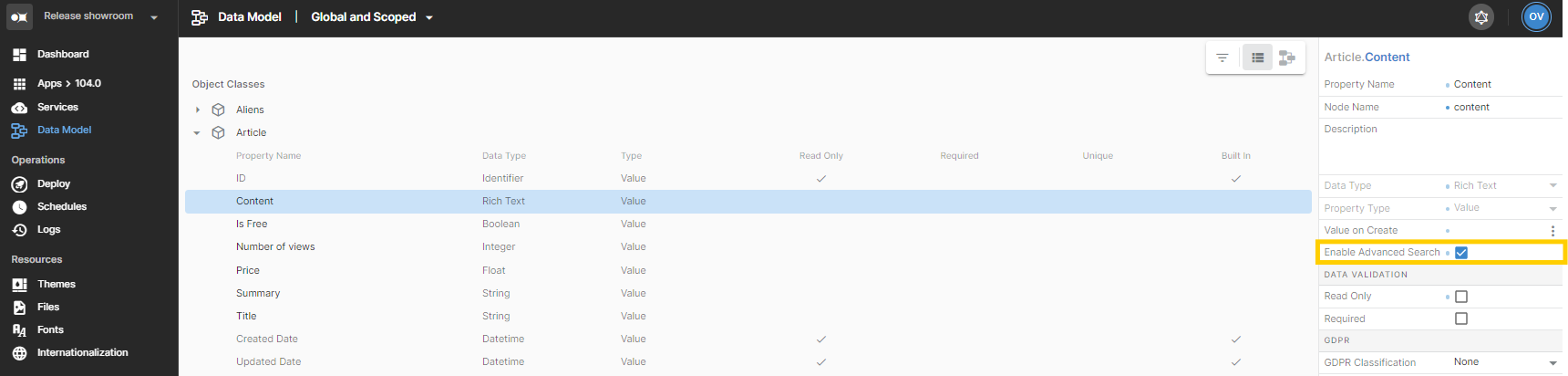
Properties that should be searchable, must be enabled for Full-text search in the data model. Select the property and, under **Full-text search**, select **Full-text search**. Note that there can be a delay of 5-15 minutes before the search indices are up and running. String, Rich Text, Integer and Float are the property data types that can be enabled for Full-text search.
For String and Rich Text properties, you can also choose an **Index analyzer** and a **Search analyzer**. They control how text is split into searchable terms when it is indexed and when it is searched. Both default to `Standard`; language analyzers such as `English` or `Norwegian` are also available.
## Step 2: App data for search results and search term
Create a runtime-only data source for storing the search results. The data source can have either cardinality one or many, but returning multiple search results is often useful. Additionally, create a String variable to capture the search term, which can be implemented as an App Variable.
## Step 3: UI for searching and displaying results
In the UI, data-bind the App Variable set up in the previous step to a text edit component. An adornment icon button can be added to make a search field. Use the On Enter and/or On Adornment Click Event Handlers to add the action to perform the search (more about that in step 4).\
\
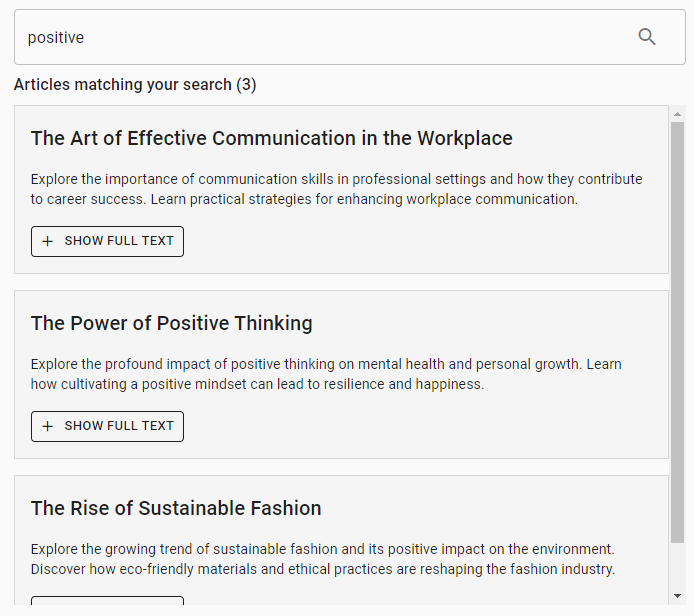
Add a list, table or iterating container and databind it to the runtime-only data source containing the search results. Visibility conditions can be added to indicate no results were found.
Displaying the search results in a simple iterating container
Giving the user feedback when no search results were returned
## Step 4: Action for Full-text search
Add a [Full-text search action node](https://docs.appfarm.io/library/action-nodes/full-text-search.md) to the action added in step 3 and set the data source to the one set up in step 2. Select the Search Type, which properties to search in (the ones enabled in step 1) and set the Search Term to be the App Variable set up in step 2.
The action node has more settings to tune the search:
* **Search Type**: `Text`, `Autocomplete` or `Equals`.
* **Search Score**: a Float property on the data source that stores how well each result matches. Sort on it to show the best matches first. The setting appears once **Data Source** is set.
* **Limit Result**: the maximum number of results.
* **Match Criteria** (Text search only): `Any` returns objects that contain any of the search terms, `All` only those that contain all of them.
* **Fuzzy Match**: finds matches even when the search term has typos. Tune it with **Fuzzy Max Edits**, **Prefix length** and **Fuzzy expansions**.
The Full-text search action node is available in app actions and in Flows.
---
# Agent Instructions
This documentation is published with GitBook. GitBook is the documentation platform designed so that both humans and AI agents can read, navigate, and reason over technical content effectively. Learn more at gitbook.com.
## Querying This Documentation
If you need additional information that is not directly available in this page, you can query the documentation by asking a question.
Perform an HTTP GET request on the following URL with the `ask` and `goal` query parameters:
```
GET https://docs.appfarm.io/how-to/logic-and-flow/configure-full-text-search.md?ask=&goal=
```
`ask` is the immediate question: it should be specific, self-contained, and written in natural language.
`goal` is what the user is ultimately trying to achieve, the reason they need the answer. Sharing it helps GitBook give you a better, more relevant answer. A goal is most helpful when it describes the outcome the user wants rather than restating the question. For example, with `ask=how do I create an API token`, a goal like `automate deployments from our CI pipeline` lets GitBook tailor the answer to that use case.
The response will contain a direct answer to the question and relevant excerpts and sources from the documentation.
Use this mechanism when the answer is not explicitly present in the current page, you need clarification or additional context, or you want to retrieve related documentation sections.